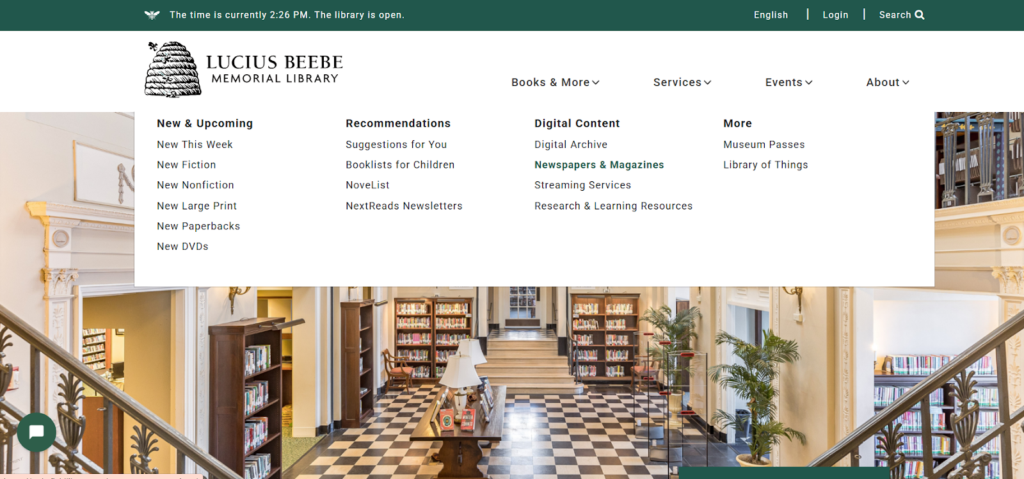
Do you have a swashbuckling ancestor with a mysterious Wakefield past? Perhaps you’ve always wanted to learn more, but the research involved seemed a little daunting. We know the struggle, and we are here to help! This guide is designed to help you start using the digital Wakefield Daily Item. The stalwart local news source has been digitized up to June 2025 as of this writing, so there’s over a hundred years of Wakefield to investigate.You’ll start from our website, wakefieldlibrary.org. At the top of the screen, you will notice a drop-down menu that gives you four sections of options. Hover your mouse over the section on the far left, labeled “Books & More.” You’ll see four more sections appear, and the one you want is the second one on the right, labeled “Digital Content.” Under that heading, click on “Newspapers & Magazines.” So far, so good!
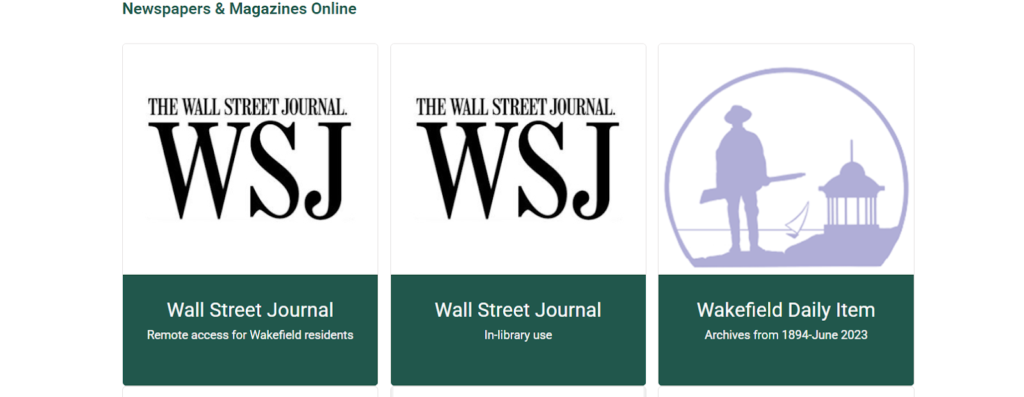
You should have arrived at a screen that gives you icons for various newspapers. I’ve included a screenshot of the part to focus on, which is the Wakefield Daily Item icon on the right.
Click on that icon, and you’ll pull up a website that looks like the screenshot below. We’re almost there! On this page, you can start to search, which would include the Wakefield Citizen and Banner, or you can narrow your search to the Daily Item by clicking on the link labeled “Wakefield Daily Item” under the green “Titles” heading on the left side of the screen.
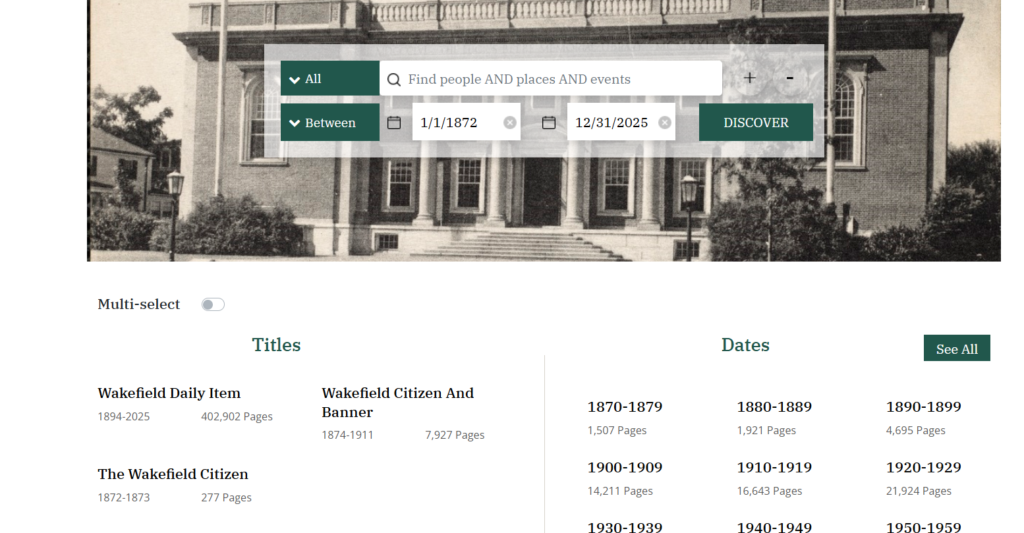
Start by searching for the topic or keyword that interests you, but depending on what you are searching for, you may want to narrow it down a bit. You can do so by editing the dates next to the green button labeled “Between” under the search bar. Narrow it down as much as you can to give yourself a manageable amount of results, or keep things broad to allow for discovery of something interesting and unexpected. Note that the text displayed in the search results will appear a bit garbled, but once you click on the edition you want to view, it will display a clear and legible scan of the newspaper.
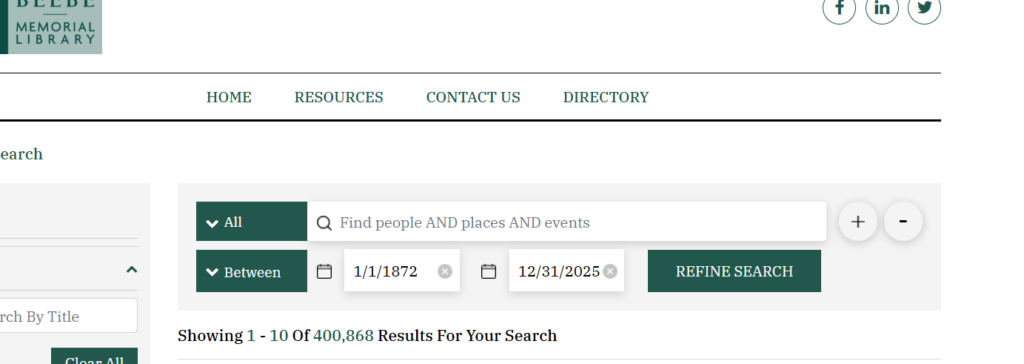
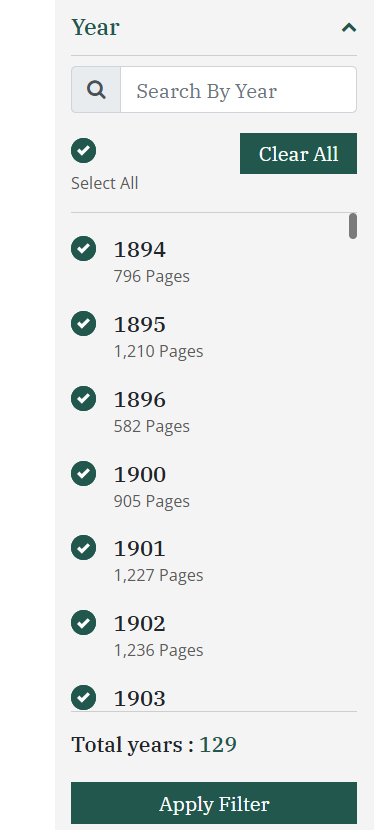
On the left-hand side of the screen, you’ll see options to filter your search results further. You can narrow your search by the decade or individual year. Don’t worry about the top two filters because those are already filled out, indicating that you’re searching within the town of Wakefield and the Daily Item.
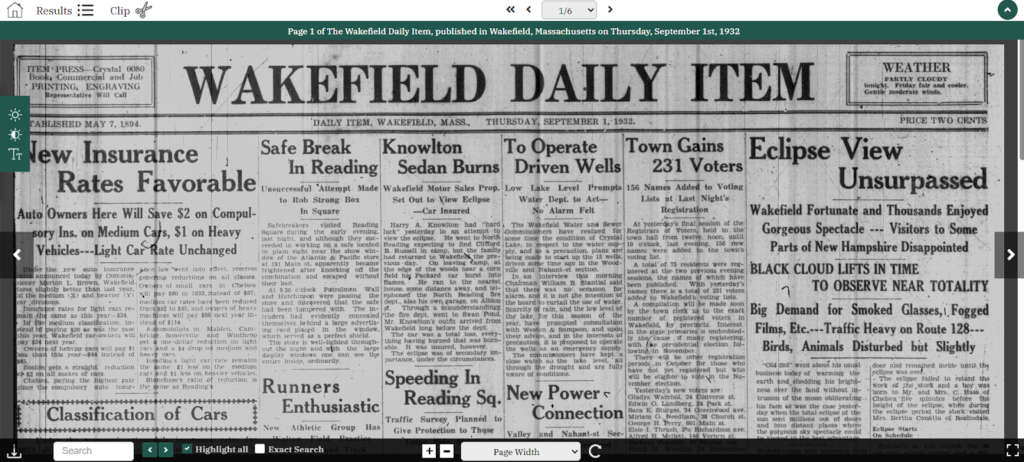
When you pull up your edition of choice, it will display like the screenshot below. This display includes the ability to easily clip and save articles or images of your choice, adjust the brightness, search within the edition, and increase the page size for easier reading.
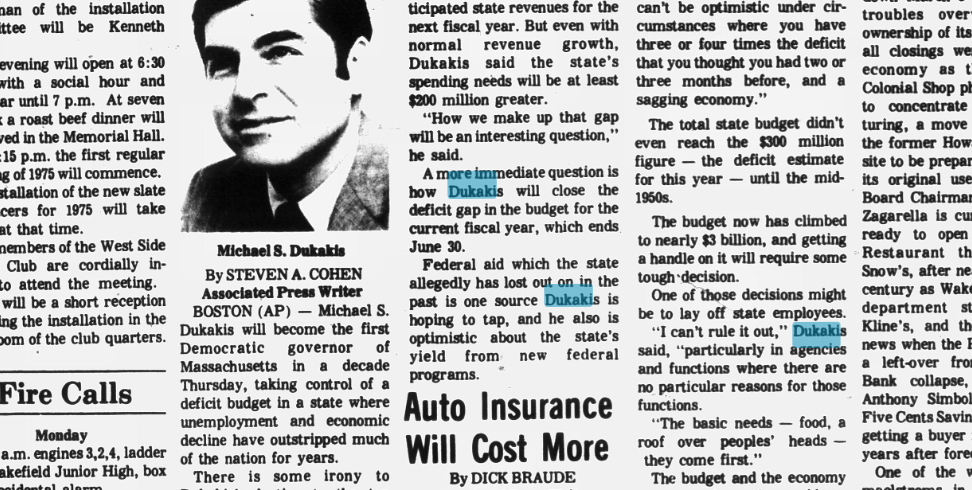
The search terms that you’ve selected will appear highlighted on the page to make it easier for you to find them (as shown below), but if you need to clip and save anything, the highlighting won’t appear in the images you download.
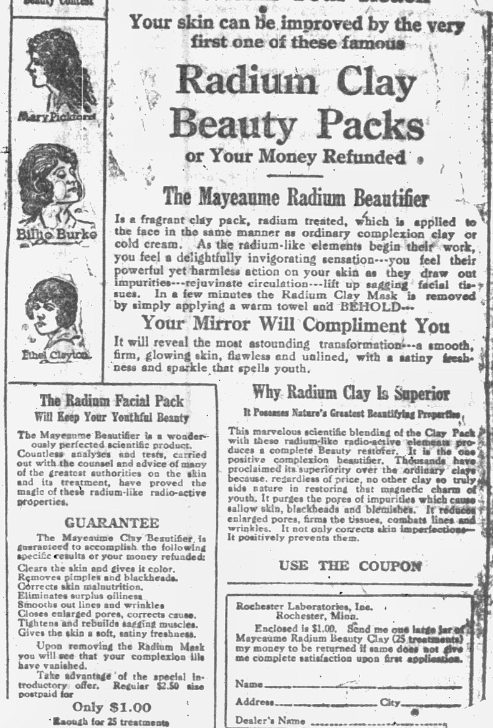
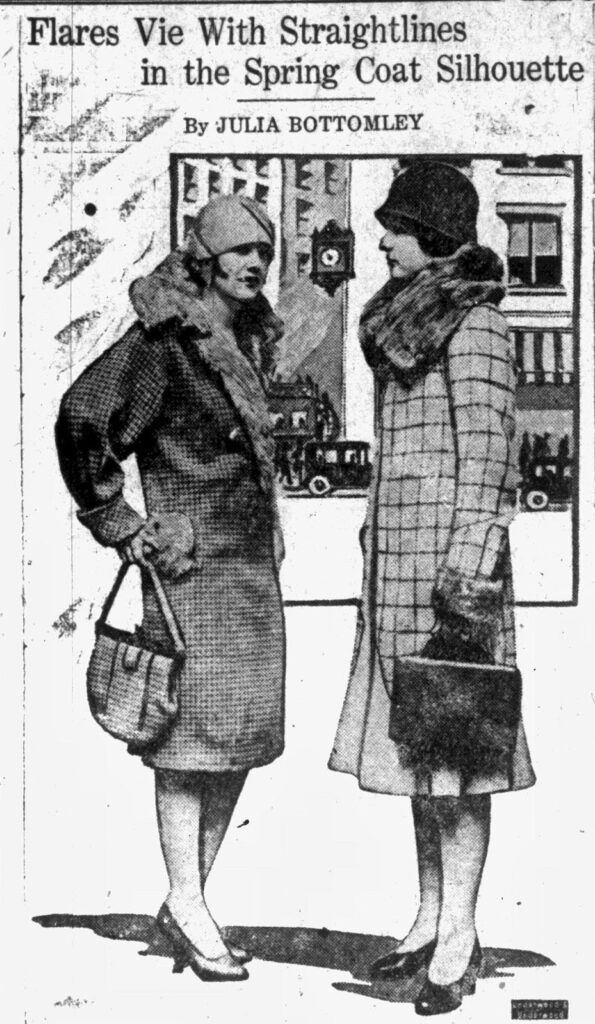
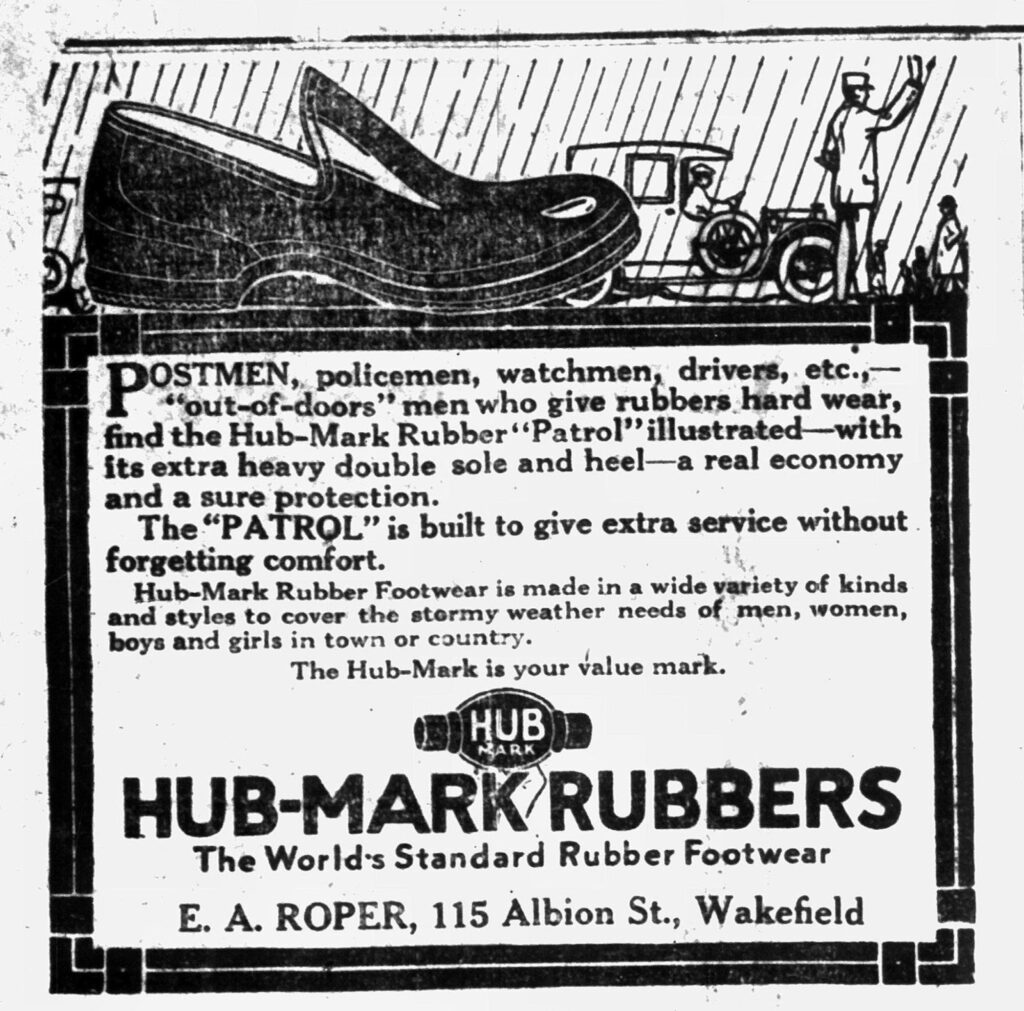
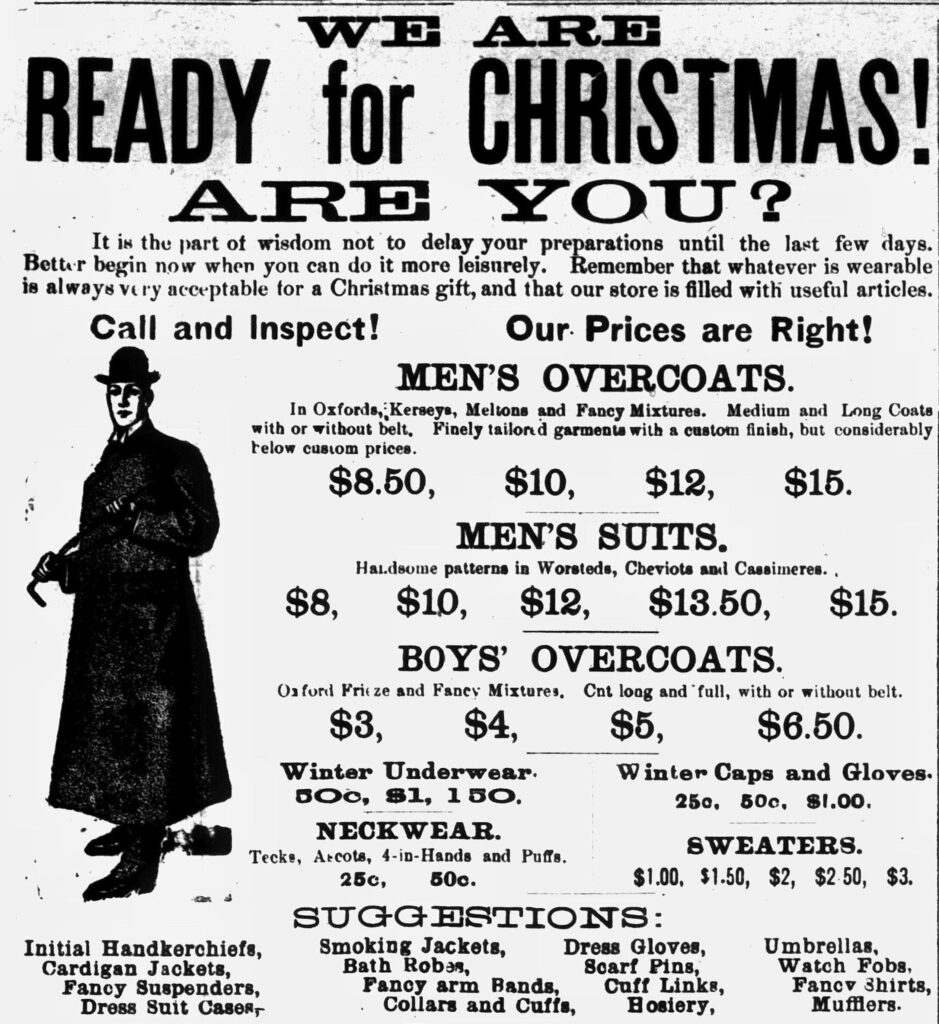
Whether there’s a specific ancestor you’re investigating, a certain historic event you want to know the Wakefield take on, or you’re just browsing for fun, there’s a lot to find here. I like searching for terms like “radium” that have taken on a very different connotation with the passage of time. I end up with interesting results like this advertisement from the 1920s for a beauty treatment that hopefully wouldn’t make it past the FDA today! Historic newspaper advertisements are one of my favorite ways to put myself into the shoes of people who lived before me–and speaking of shoes, “Hub-Mark Rubber Footwear” could have a fashion moment if it was brought back today, don’t you think?
Happy researching, and as always, don’t hesitate to contact our Reference Department for assistance if you need help with this or any of our other digital resources.